Showing posts with label vinyl. Show all posts

Thursday, August 23, 2018

A Baker's Dozen Reasons I Love my Cricuts and 10 Cute Ways To Organize


It's no secret that I LOVE Cricut®!  It all started way back in 2005-2006(?), and I heard about this fantastic electronic die cutting machine named after a green bug! Being the creative and curious, type by nature, and intrigued, I just had to know more!  Then, IT arrived in Canada!  Armed with every penny, I had scraped up and a credit card I made sure my kids were looked after and drove out to a store in the other province early one morning before the store opened so I could be one of the first to buy one of these Cricut™s in my country. The rest is history.

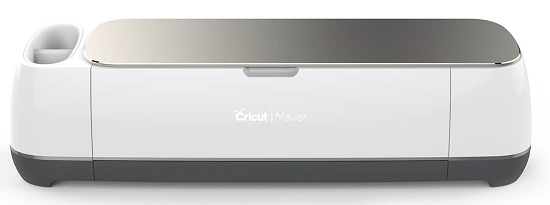
First.  Let me explain what a Cricut™ is and if you are not familiar with what Cricut™ is let me explain with this. Talking about the most current version of the Cricut™ available in the market today, the Cricut Maker™!


The Cricut Maker™ is  #1, the "Ultimate" machine out there known for it's cutting performance and versatility.  #2, No, other product out there compares.  #3, With the myriad of blades available and its #4, Adaptive Tool System™ it performs at a professional level,  #5, is expandable, and if using the Fast Mode will cut and write up to twice as fast!

Reason #6, Use the Cricut Maker™ to make the most out of your creative time to cut the most extensive selection of materials from delicate fabrics to matboards, and even leather! #7,  Combine the machine's capacities with the more than 500 digital sewing patterns available to make sewing and quilting projects come to life quickly. #8, Or enjoy its Bluetooth® wireless technology to create beautiful paper crafts from the comfort of any room while the Cricut Maker™ does the job in another area!
I 've rambled on about eight reasons alone to love the Cricut Maker™, but what are the other reasons for me to still Love Cricut?  More importantly, how do I organize ALL my Cricut Stuff?

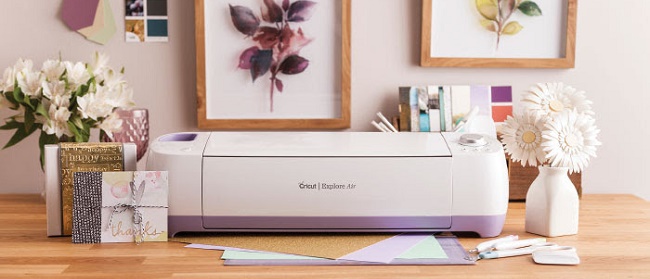
Another five reasons I love Cricut® is ALL The PRODUCTS and TOOLS!  To be honest, I  probably own the majority of what Cricut makes, as I like them so much.  I have told you about the           Cricut Maker™ which I own (Thanks to Cricut), I also still own the Explore Air™ 2 (still available),


                                                                     and the Cuttlebug™.


 It doesn't end there I am happy to say that I have and enjoy the Cricut Easy Press™ too! Fifthly, I get to store and carry my prized equipment in the gorgeous Tote collection by Cricut®!

Which now brings me to talk about Those 10 Cute Ways To Store and Organize My Cricut® Stuff!  My motto is A place for everything, and everything in its place!


1. Drawers, Shelves, Protective Pouches, and Labels. I currently store my Cricut Easy Press™ in its own drawer in my studio.  I also use a wheeled storage cart when I am using the Easy Press™ and need a little extra working space.


2.  Bins, Boxes, and Baskets.  All my Felts are stored in one of these bright pink fabric bins that I purchased at a dollar store, and keep in a cupboard. Notice the label?


                                        I use a labeled pencil box for my Cricut pens which I store in the cupboard
                                                              above my  Cricut station.


3. Hangin it! Short on space?  Use any vertical surface such as walls or the sides of furniture and cabinets! Here I show how I use pegboard in my studio and hang many of my  Cricut Tools. Including the mats.


Sticky back hooks (especially the 3m Command) at the end of a counter, and along the side of a cupboard make a practical place to hang up those Self-healing mats.


4. A Place for Papers. I store my papers in scrapbook paper holders  ( Storage Studios by Cropper Hopper), inside my cupboards. I also write on the spine of the paper pad or outside packaging the name and color of each set of paper.


The scraps are placed inside Vinyl Job Ticket Holders and labeled. Then placed alongside the full-size sheets of papers in the same color.


5.  Keeping the Vinyl in View. Now those pesky vinyl rolls are often a challenge to store as they like to roll!  I took advantage of the space that is between my cupboards that normally would be covered with a false front or filler piece to have small shelves built.  I then stack the rolls of Vinyl there, within reach, in view, but I am sure they won't go anywhere!


6.  Cutting the clutter around The Cuttlebug™.  Creating with the  Cuttlebug™ is a lot of fun, but darn how to store all those Cut and Emboss Diessteel dies, Embossing folders, and the mats?  Again I use the drawers I have along with some clear bins and colorful cardboard photo boxes.
  

I keep parts of the Embossing Folders packaging to make a holder and place to organize each folder.


7.  Magnetic sheets for Cuttlebug® Dies storage.  In order to keep all the different steel dies that can come in a set, I find it safer to keep them together by sticking them onto magnetic sheets which are labeled and inserted into a plastic sleeve. (Video soon)


8. What about those Cricut® Blades,  and housing, etc.  Ahh, the more I use my Cricut Maker™, the more blades, and housings I want.  To me, this has been the most challenging of all the Cricut tools to organize.  My latest system consists of small plastic storage tubs from the dollar store, a wire basket, more labels, and my trusty pegboard!


9.  The BrightPad™ has a specific spot too in my studio, tucked away in its cozy felt pouch that I Designed and created. I tuck it in a spot under my desk so it is easy to grab whenever I need it for tracing at my drawing desk, my counter for illuminating a specific and detailed project, or for weeding vinyl after cutting on my Cricut Maker™!


                                                                    See the video here.


10.  Cricut® Bags and Totes for on the go creating or at home storage.  These totes are not only beautiful but they are so practical and makes traveling to and from events or vacations a breeze.


Use these totes for storage at home especially if your space is limited and you need to store your supplies once your making session is done.  Look stylish with these classic looking totes too wherever you go!


I hope that you found at least one tip useful in my long list here.  Thank you for stopping by.
                                                                       Stay Crafty!


POST DISCLAIMER 

This is a sponsored conversation written by me on behalf of Cricut. The opinions and text are all mine.

READER COMMENT DISCLAIMER 

Comments submitted may be displayed on other websites owned by the sponsoring brand.

  
    The lightweight, low-profile BrightPad makes crafting easier while reducing eye strain.
This is a sponsored conversation written by me on behalf of Cricut. The opinions and text are all mine.

cricut


Monday, August 13, 2018

Cricut Products New in my Craft Room


The lightweight, low-profile BrightPad makes crafting easier while reducing eye strain.


Cricut sent me some New products for the sponsored posts I make for them, and I am very excited to create and share more Cricut How To's with you!


See it all here:

Cricut sent me some NEW to products to use with the Cricut Maker, Explore Air, and Cuttlebug for more How To videos for your crafting. Cricut is my sponsor for many of the Cricut Videos that I make. All opinions expressed in this video are my own.


Affiliate Links (That pay me a little bit if your buy, Thx!)

Cricut Explore Air™ http://shrsl.com/13y6y

Cricut Maker™ http://shrsl.com/13y6z

Cuttlebug™ http://shrsl.com/13y70

Vinyls http://shrsl.com/13y71

BrightPad™ http://shrsl.com/13y72

Replacement Blades for Paper Trimmer  http://shrsl.com/13y75

Cricut Maker MachineFabric Samplers  http://shrsl.com/13y77

XL Scraper  http://shrsl.com/13y7a

Mats http://shrsl.com/13y7b

Self Healing Mat  http://shrsl.com/13y7e

Rotary Cutter Kit  http://shrsl.com/13y7f


Let me know in the comments what you would like to learn more about Cricut® Products, and what How To's interest you.

                              Thanks so much for stopping by today.  Have a Crafty day!

Monday, July 10, 2017

Cricut Prime Deal

Get a deal on Cricut Explore Air 2 during Amazon's Prime Day. Lasts for 30 hours only!


                           Get one while you can!  Get your Craft on, and have loads of fun!

                    Come back on Wednesday, for a NEW How To with Cricut.  Plus, Bonus video!
Affiliate link included (I receive a commission from any purchases, thank you.

Friday, March 24, 2017

Creating Home Decor with Cricut

Today I am sharing with you how you too can make some fabulous items to decorate your home, with the help of the Cricut Explore Air™ 2  If I can learn to use all of the machine's capabilities, trust me, so can you!


The next DIY is an entirely original piece that I designed in the Cricut Design Space™, and Cricut Craft Room. I used some inexpensive supplies in addition to the Cricut Explore Air 2. Cricut     Glitter Vinyl,  and Cricut Transfer Tape. This glass plaque is a kitchen cutting board from a Dollar Store!  The sparkling gem border is also from the Dollar Store!


 I first went into Cricut Design Space™ to design my project playing around with fonts, some images, and spacing.  Because, I am cheap, I chose to See all the Free Projects in Cricut Design Space. I used the design I created in Design Space, and the library I still have in the Cricut Design Room .


 Are you confused yet?  You see, The New Design space is easier to use, and allows for more complex manipulations of your design.  In my case, once I had played around until I came up with the desired, and realized that the chosen font was not free (See all the Free Projects in Cricut Design Space ) I thought I might try again to find one I could get for free.  I tried replicating my Design in the Cricut Craft Room using a font that I liked, and already included in my library. ( I have been with Cricut for a long time, and I have an extensive library of images and text)


I chose to use some Glitter Vinyl.  It was my first time cutting into that material, and I was a bit nervous!  But rest assured it is just the same as any other material, except that it is so shiny!  The Glitter Vinyl from Cricut is of high quality, no glitter comes off, and the blade of the Cricut Explore Air™ 2 machine cuts through it like butter.


Once the words made, I lay a piece of transfer tape over the Glitter Vinyl and burnished it with the handy Cricut Scraper tool.  Using the Cricut Transfer Tape makes aligning the letters so much easier onto the project.


Before applying the words to the glass cutting board, I chose to remove the four little clear rubber-like feet that were on the underside.  With some rubbing alcohol, I was able to remove the small bit of sticky goo that remained.


 I also chose to clean the entire glass with some rubbing alcohol.  I like to do so to ensure that there will be proper adhesion of the vinyl to the glass.


With the Cricut Transfer Tape, and the help of the Cricut Weeders Tool I got the cut words and all the beautiful letters safely off the cutting mat.


 I then lay the letters over the glass board, and applied some pressure with the Cricut scraper tool  over the Transfer Tape.  I removed the transfer paper carefully.


To make sure I aligned everything correctly, I had placed the glass cutting board onto a rotary cutting mat with a grid; this allowed me to make sure everything lined up just right.


As a final step, I chose to add some sparkling gem border I had been hoarding for some time.


To apply the already sticky backed border precisely onto the plaque I re-used the Transfer Tape to lift the flower border off the packaging and apply it to the glass board.


 This piece is intended for my Master Bathroom which is undergoing a remodel.  The bling on the plaque will match with some of the other accessories in the new room.

Thank you for viewing my latest project.  Come back soon to see how I learned to take digital images from the internet (Free and Legal) and turn them into vintage ephemera embellishments to use in my
Mixed Media and Art Journaling, all with the help of Cricut!

This is a sponsored conversation written by me on behalf of Cricut. The opinions and text are all mine.

Friday, March 10, 2017

Crafting With Cricut Explore Air2

How to create custom made projects for fun, family, and maybe fame :) with the Cricut Explore Air™ 2 machine


I have recently had the pleasure of becoming a Brand Influencer with one of my all time favorite companies, Cricut!   I am so delighted and excited to begin this journey with them, as I have been one of their longest fans.  I fell in love with the very first Cricut years and years ago when the first one was made available and sold in Canada.  I remember going to Zellers (now defunct) to purchase one of the very few Cricut machines that the store had advertised in their weekly paper flyer!  I wanted that baby so bad, my sons remember that day very well, and remember the joy we had learning to create with the machine.  My boys were little at the time and enjoyed helping mom to press the buttons to die cut some cute and fun die cuts to decorate our scrapbooks, make cards, and just plain have fun.  Fast forward to 2017, and my now young adult sons are thrilled for me as they know how much I have enjoyed playing with ALL the Cricut machines I have purchased over the years.  That's right; this is not my first Cricut.  However, I can honestly say that receiving the Cricut Explore Air™ 2 machine from the company as part of working for them has been a very exciting moment for me.  I still own and will keep my original Cricut, if only for sentimental reasons.

Here is the video of my embarrassing excitement and gushing over my new Cricut Explore Air™ 2 machine :


So, what is a Cricut you may ask?  Cricut Explore Air™ 2 machine is a smart cutting machine that will help you make your very own personal, and high end looking projects with ease.  The Cricut family of tools allows you to cut, and create projects for your home decorating,  parties, events, your clothing, and so many projects.


Think of it as having a printer that also cuts.  That's right, with a Cricut Explore Air™ 2 machine not only can you die cut, but you can also draw, write, print on all sorts of flat materials from papers, vinyl, fabrics,  thin veneers, chipboard, etc.

Do you like having customized home decor?  Do you admire all those beautiful party decorations you've seen at events?  Would you like to be able to say "I made this?  But, do you also think to yourself "I am not creative, and I don't have the time to do these things!"  Well,  I am here to tell you that a Cricut Explore Air™ 2 machineCricut is the perfect and affordable tool for you.  It is so easy to use, that even the least creative person will become a DIY' r in no time.  All you need is the desire to want to make something special.

Perhaps some of you are wondering why I have upgraded over the years, and why I so am in love with the Cricut Explore Air™ 2 machine? Simple, in my opinion, it's the fastest and easiest of all the machines ever that Cricut has made. It seriously works twice as fast as the Cricut Explore Air, I know I have tried both. Is it faster than the original cricut?  Well, of course, it is!  And it is quieter.  The machine also takes original cartridges, which you can upload onto the Cricut® library in My Cricut Craft Room.

If you are reading this post or viewing my video, then you already can use a Cricut® and its software which is available online.  Upon purchase of any Cricut®, there are instructions included as to how to set up your machine and the software.  You can do so wirelessly, or by connecting directly to your desktop, laptop, and devices.


In future posts I will share with you projects I have made using the Cricut Explore Air™ 2 machine Cricut® Explore Air2.  The very first project I made, right away, was a simple Thank You card.

I hope that you come back and see how you too can do a similar project.

Thank you so much for stopping by, and stay crafty.

This is a sponsored conversation written by me on behalf of Cricut. The opinions and text are all mine.


Follow Cricut here:
Instagram:
Pinterest:
Twitter:
Facebook:
YouTube:

SaveSavehttps://goo.gl/VZGN5M
This is a sponsored conversation written by me on behalf of Cricut. The opinions and text are all mine.